Christmas countdown timer for emails
Show customers how long they have left to order in time for Christmas. Create a timer, copy one line of code, and paste it into your campaign.
Create my Christmas timerFree for 10,000 views a month, with a small SnapTimers mark. No card needed.
Key Christmas dates to plan around
- Your order deadline
- Set by your carrier
- Christmas Day
- Friday, December 25
- Boxing Day
- Saturday, December 26
- New Year's Day
- Friday, January 1, 2027
A simple Christmas email plan
- Early December
Share your gift ideas
Help customers choose, and tell them the last day to order for delivery before Christmas.
- About a week before the deadline
Announce your last order date
Give the date early and repeat it in your emails. People plan gift buying around it.
- A few days before the deadline
Count down to delivery
Use the timer to show exactly how long customers have to order in time.
- After the deadline
Offer another way
Promote gift cards, local pickup, or a new timer for your next offer.
- December 26
Start your after-Christmas sale
Count down to the end of your Boxing Day or end-of-year sale with its own real deadline.
- The last days of December
Send a New Year last call
Close the year with one final offer, and end it when the timer reaches zero.
How to use a timer for Christmas
- Check your carrier's latest shipping dates, and leave yourself some margin before setting your deadline.
- Set the timer in the timezone of your warehouse or your customers, and state which one in your email.
- Say exactly what the deadline means, such as "Order by then for delivery before December 25".
- Send yourself a test before the campaign. Some desktop versions of Outlook show only the first frame of an animated image.
Step-by-step guides: Klaviyo, Mailchimp, Omnisend, Shopify Email, all platforms.
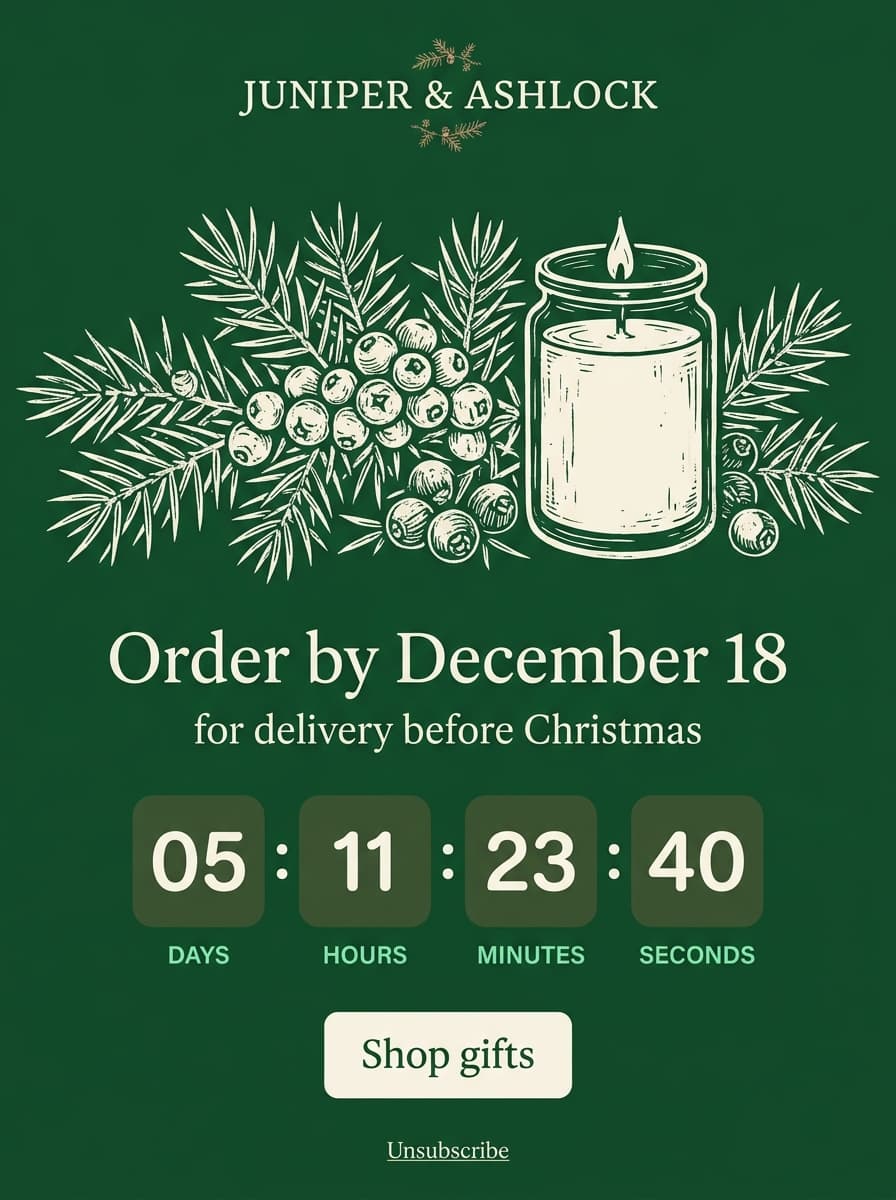
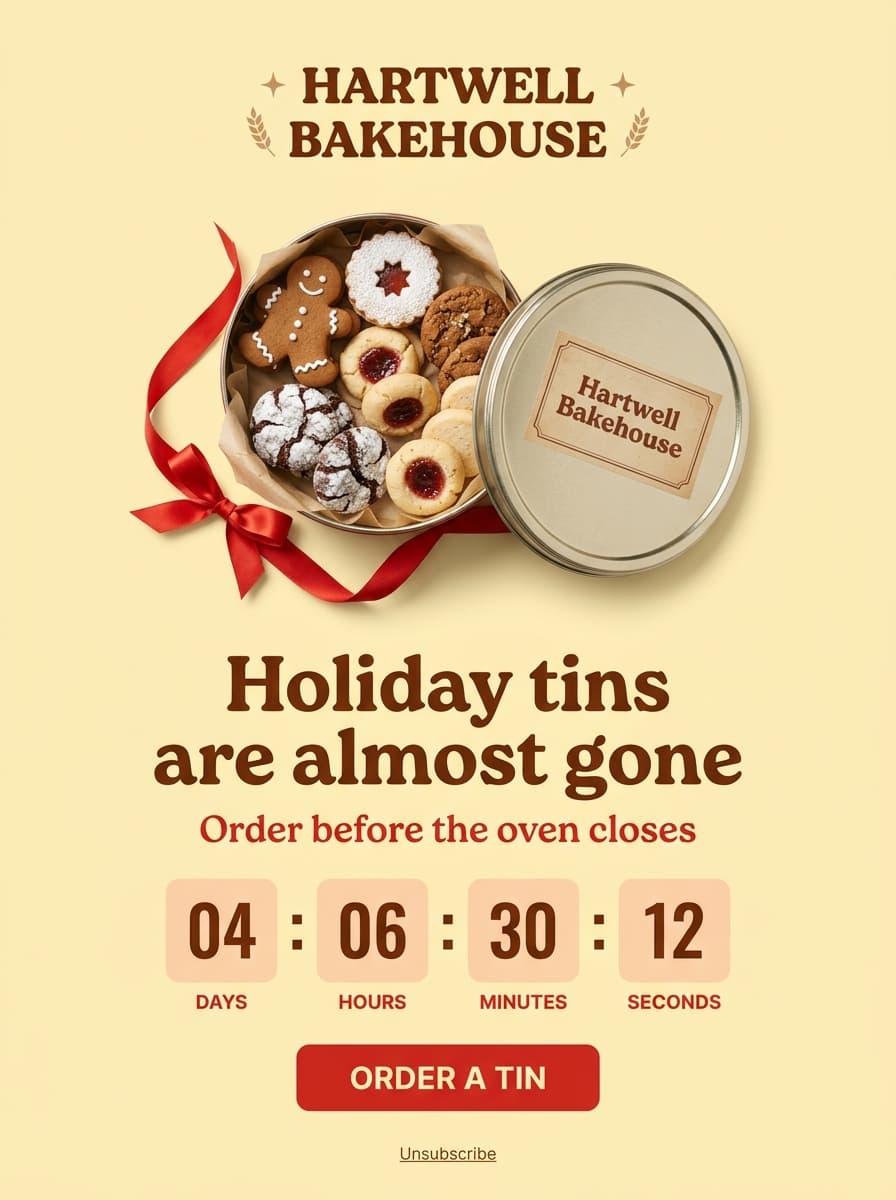
How to choose your Christmas order deadline
Your deadline is the last moment a customer can order and still receive it before Christmas. It depends on your carrier and service, where you ship from, and how long you take to pack orders.
Start from the latest holiday shipping dates your carriers publish for the service you use, then subtract your processing time and leave some margin. If you ship internationally, deadlines are often much earlier, so consider separate emails and timers for each region.
Timer ideas for the Christmas season
- Standard shipping deadline: the main timer for most stores.
- Express shipping deadline: a second, later timer once standard delivery has closed.
- Local pickup cut-off: useful for stores with a physical location.
- Gift card last call: digital gifts can be bought right up to Christmas Day.
- Boxing Day or New Year sale: a new offer once Christmas delivery has closed.
Which type of timer do you need?
Use a fixed-date timer for shipping deadlines, because the date is the same for everyone and it works on the free plan.
Use an evergreen timer for automated emails, such as a welcome offer, where each subscriber needs their own deadline. Persistent evergreen deadlines are included from the $9 Starter plan.
What should happen after the deadline?
Customers will open your email after delivery has closed, and a timer stuck on zero doesn't help them. Set the timer to disappear or switch to a custom image that points to gift cards or your next offer.
Questions
How do I add a Christmas countdown timer to an email?
Create your timer, set your order deadline and timezone, then copy the code. Paste it into an HTML or image block in your email platform. The timer is a hosted animated image, so it needs no plugin.
What date should the timer count down to?
For most stores, count down to the last day customers can order for delivery before Christmas, rather than to December 25. That deadline is what they need to act on.
Does it work with Klaviyo and Mailchimp?
Yes. The timer works in any email platform that lets you add an image or custom HTML, including Klaviyo and Mailchimp. Shopify stores can use it through the email platform they send with.
Can I use a different timer after the shipping deadline?
Yes. Create a separate timer for each deadline, such as standard shipping, express shipping and your after-Christmas sale. Each email then uses the timer that fits when it goes out.
Does it work in Outlook and Apple Mail?
The timer displays as an image, but some Outlook setups show only the first frame, and Apple Mail Privacy Protection can show the time from when the image was downloaded. Stating the deadline in text covers both cases.
Is it free?
The free plan includes 10,000 views a month and every timer style, with a small SnapTimers mark on the timer. Paid plans start at $9 a month and remove the mark.