Black Friday countdown timer for emails
Show subscribers exactly how long your Black Friday offer lasts. Create a timer, copy one line of code, and paste it into your campaign.
Create my Black Friday timerFree for 10,000 views a month, with a small SnapTimers mark. No card needed.
Black Friday 2026 dates
- Thanksgiving
- Thursday, November 26
- Black Friday
- Friday, November 27
- Small Business Saturday
- Saturday, November 28
- Cyber Monday
- Monday, November 30
A simple Black Friday email plan
- About a week before
Tell people it is coming
Announce the date and what kind of offer to expect, so your sale is on their list before every inbox fills up.
- A few days before
Build anticipation
Count down to the moment your sale opens, and ask subscribers to save the date. Consider early access for your best customers.
- Black Friday morning
Open the sale
Lead with your offer, and count down to the real end of the sale.
- The final hours
Send a last call
Keep the message short. The timer does most of the work.
- Saturday or Sunday
Remind people who missed it
If the offer runs through the weekend, send a reminder to people who haven't bought yet, with a timer counting down to the new deadline.
- Cyber Monday
Close it out
Send a final offer with its own deadline, then end it when the timer says so.
How to use a timer in your campaign
- Place the timer close to your offer and your button, so the deadline and the action sit together.
- Use a real deadline. When the timer reaches zero, end the offer.
- State the deadline in text too, because some people read emails with images turned off.
- Send yourself a test before the campaign. Some desktop versions of Outlook show only the first frame of an animated image.
Step-by-step guides: Klaviyo, Mailchimp, Omnisend, Shopify Email, all platforms.
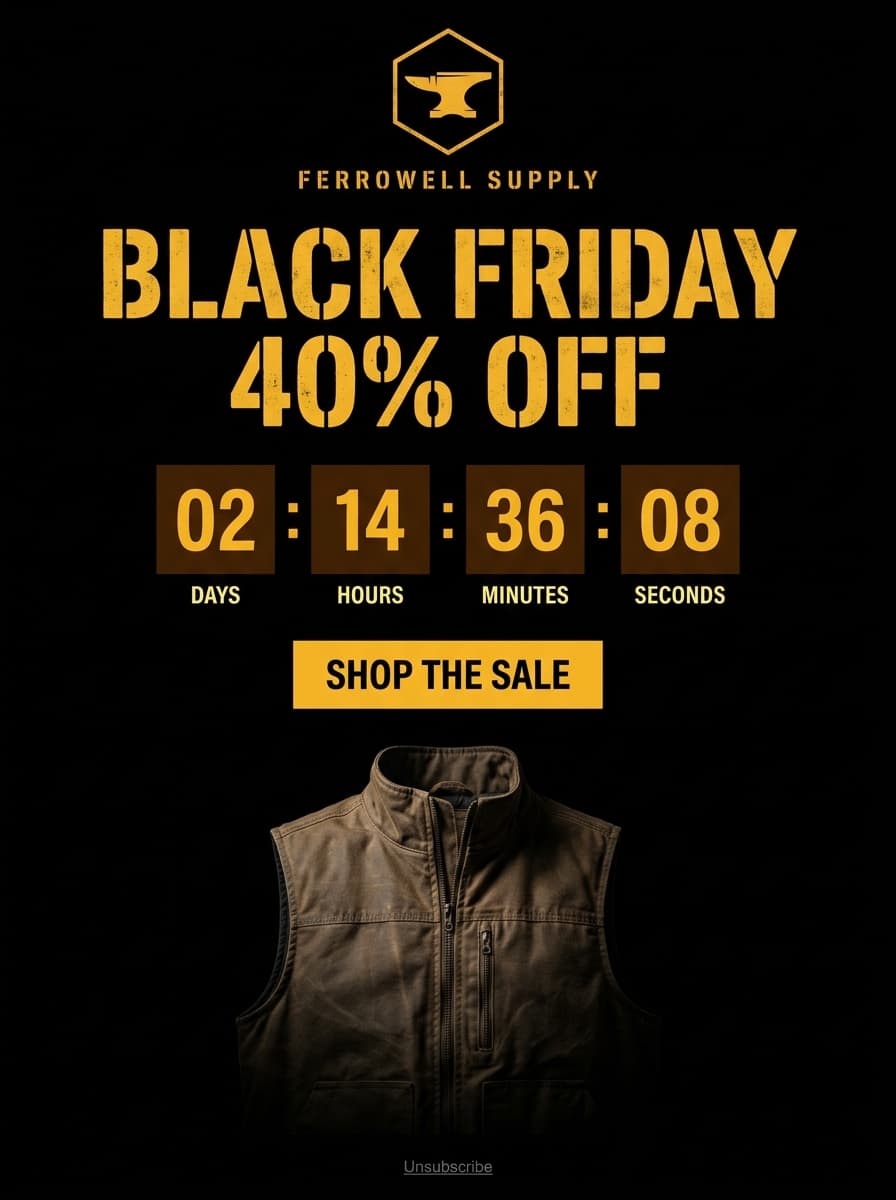
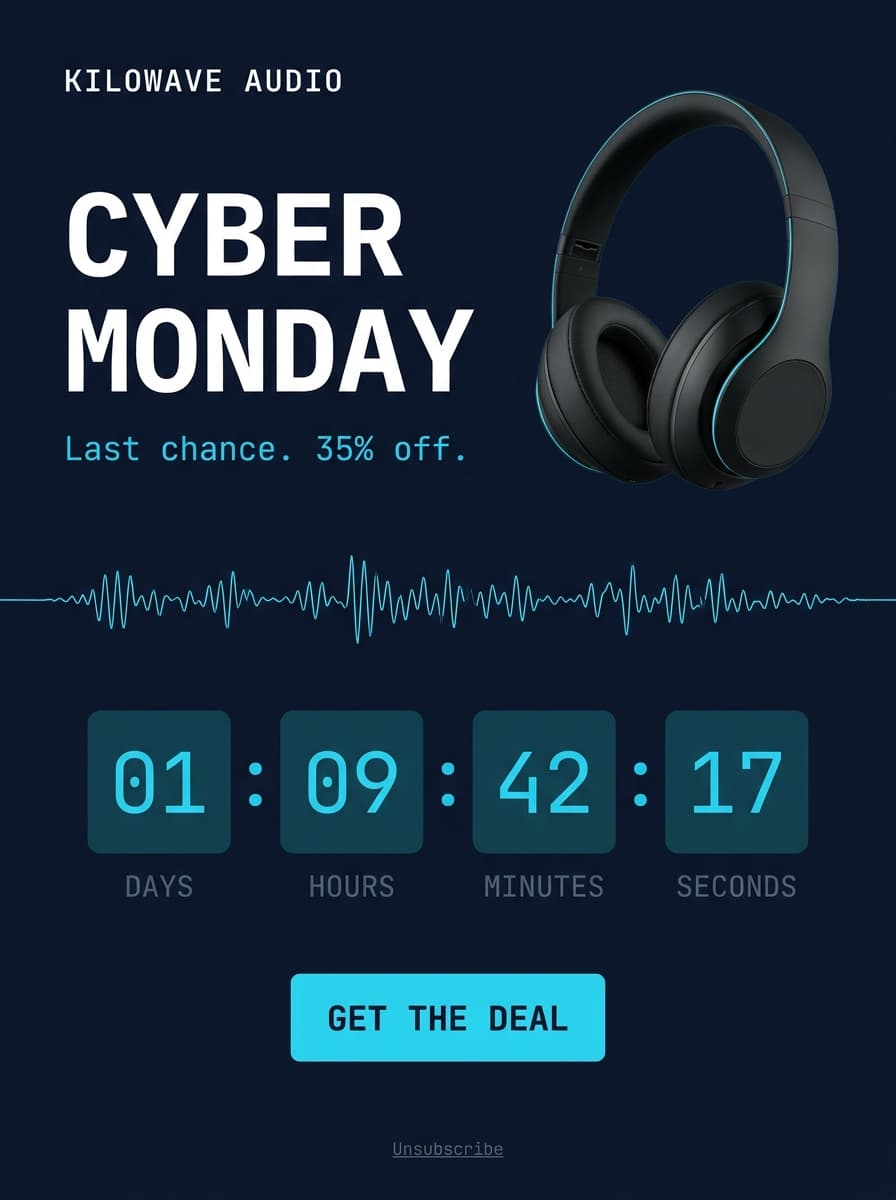
What should your Black Friday timer count down to?
Use one clear deadline per email, and make it the thing you want people to act on.
- The sale opening: use this in teaser emails, so people know when to come back.
- The sale ending: use this once the sale is live. It is the most common choice.
- The end of the weekend: if one offer runs from Friday to Monday, one timer ending on Cyber Monday is enough.
- An early-access window: give subscribers a head start, with a timer showing when it opens to everyone.
- A shipping cut-off: if your Black Friday orders are gifts, count down to the last order date for delivery in time.
Which type of timer do you need?
For a Black Friday campaign, use a fixed-date timer. Everyone counts down to the same real moment, whenever they open the email, and it works on the free plan.
Use an evergreen timer for automated emails that keep sending through the season, such as a welcome offer, where each subscriber needs their own deadline. Persistent evergreen deadlines are included from the $9 Starter plan.
If you have customers across timezones, say which timezone the deadline uses in your text. On the Growth plan and above, a timer can instead end at the same local time for each viewer.
What should happen after the deadline?
People open emails after a sale ends, so decide what they will see. A timer can show zeros, disappear, or switch to a custom image, such as one pointing them to your next offer.
Whichever you choose, make your store match. If the timer says the offer ended, the discount should end too.
Your Black Friday timer checklist
- The end date, time and timezone match the real end of your offer.
- The deadline also appears in plain text, and in the alt text of the timer.
- The timer sits next to the offer and the button.
- You sent a real test to yourself and opened it again a few minutes later.
- You checked it in the email apps your customers use, such as Gmail, Apple Mail and Outlook.
- You created the timer early, so you aren't setting it up on the morning of the sale.
Questions
How do I add a Black Friday countdown timer to an email?
Create your timer, set the end date and timezone, then copy the code. Paste it into an HTML or image block in your email platform. The timer is a hosted animated image, so it needs no plugin.
Does it work with Klaviyo and Mailchimp?
Yes. The timer works in any email platform that lets you add an image or custom HTML, including Klaviyo and Mailchimp. Shopify stores can use it through the email platform they send with.
Can I use the same timer for Cyber Monday?
Yes. If your offer runs through the weekend, set one timer to end on Cyber Monday. If each offer has its own deadline, create a separate timer for each.
Will the timer show the right time if someone opens the email later?
Usually, yes. The image is created when the email app asks for it, so it shows the time left at that moment. Some apps save images earlier, so also state the deadline in text.
Does it work in Outlook and Apple Mail?
The timer displays as an image, but some Outlook setups show only the first frame, and Apple Mail Privacy Protection can show the time from when the image was downloaded. Stating the deadline in text covers both cases.
Is it free?
The free plan includes 10,000 views a month and every timer style, with a small SnapTimers mark on the timer. Paid plans start at $9 a month and remove the mark.