
Prerequisites
Before you start adding a countdown timer to your Mailchimp email, make sure you have:
- A SnapTimers account
Free tier works perfectly for this tutorial. Create your free account here.
- Access to Mailchimp email editor
Works with any Mailchimp plan including the free tier. You'll need access to the drag-and-drop editor.
- An email campaign or automation to edit
You can add timers to any Mailchimp email - campaigns, automations, or templates.
Create Your Countdown Timer
First, create and customize your countdown timer in SnapTimers. This is where you'll design exactly how your timer looks in your Mailchimp emails.
Go to the SnapTimers Timer Editor and sign in to your account (or create a free one).
Set your target date and time - this is when your sale ends, event starts, or offer expires.
Customize the design - choose colors, fonts, and spacing that match your Mailchimp email template and brand.
Set expiration behavior - decide what happens when the timer hits zero (show zeros, hide timer, or display a custom message).
Pro Tip for Mailchimp Users
Use the "Balanced" or "Retina" quality setting for the best results. Mailchimp emails display well on both desktop and mobile, so higher quality ensures your countdown looks crisp on all devices.
Export Your Timer as HTML Code
Once you're happy with your timer design, export it to get the HTML code you'll paste into Mailchimp.
Click "Update Timer" or "Create Timer" in the top right corner of the SnapTimers editor.
In the Export modal, you'll see a Preview of your timer. Verify it looks correct, then click "Looks Good, Continue".
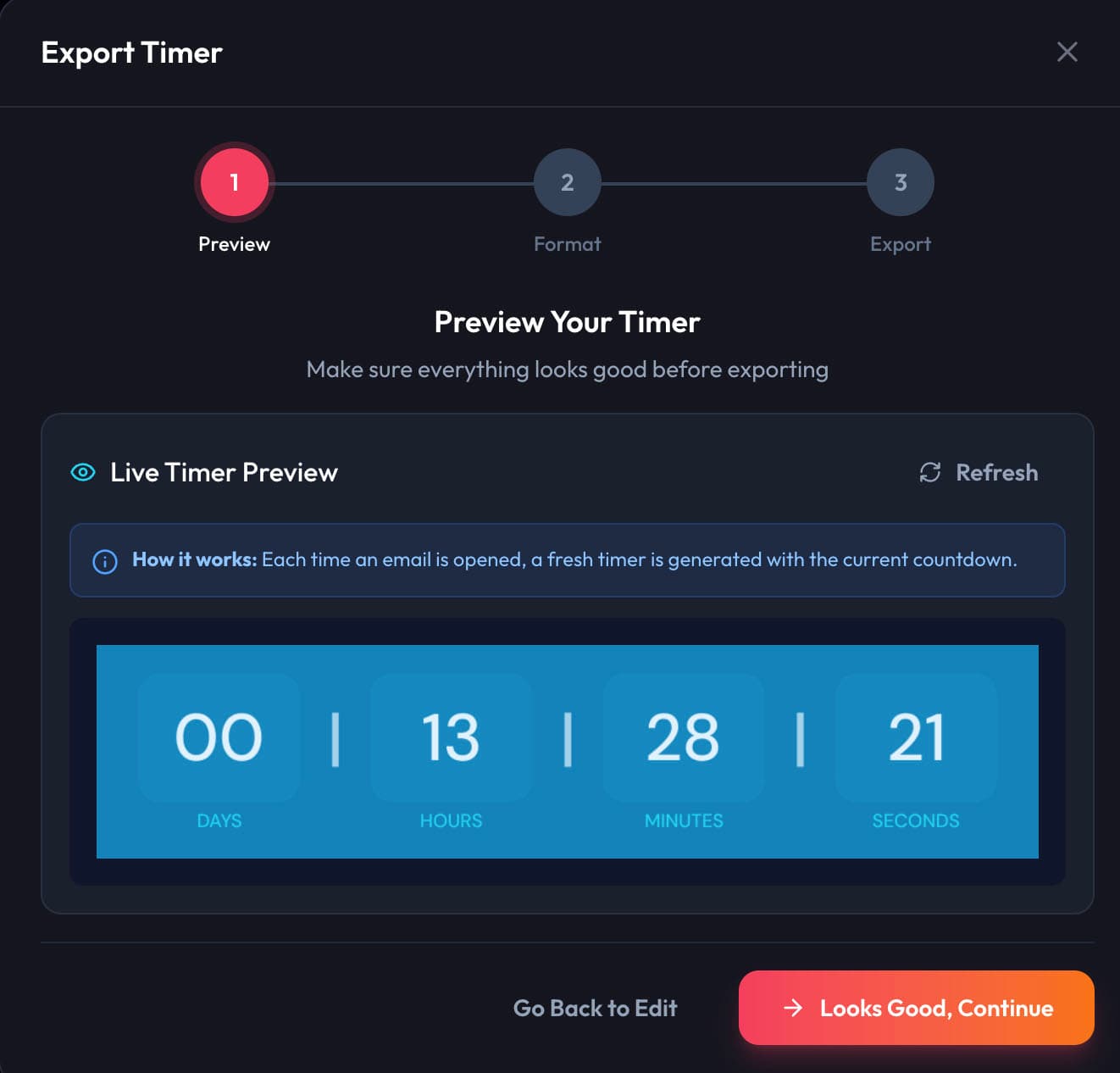
Preview your timer before exporting
On the Format step, select "HTML Embed Code". This is the recommended option for Mailchimp - it includes pre-configured dimensions that work perfectly with Mailchimp's Code block.
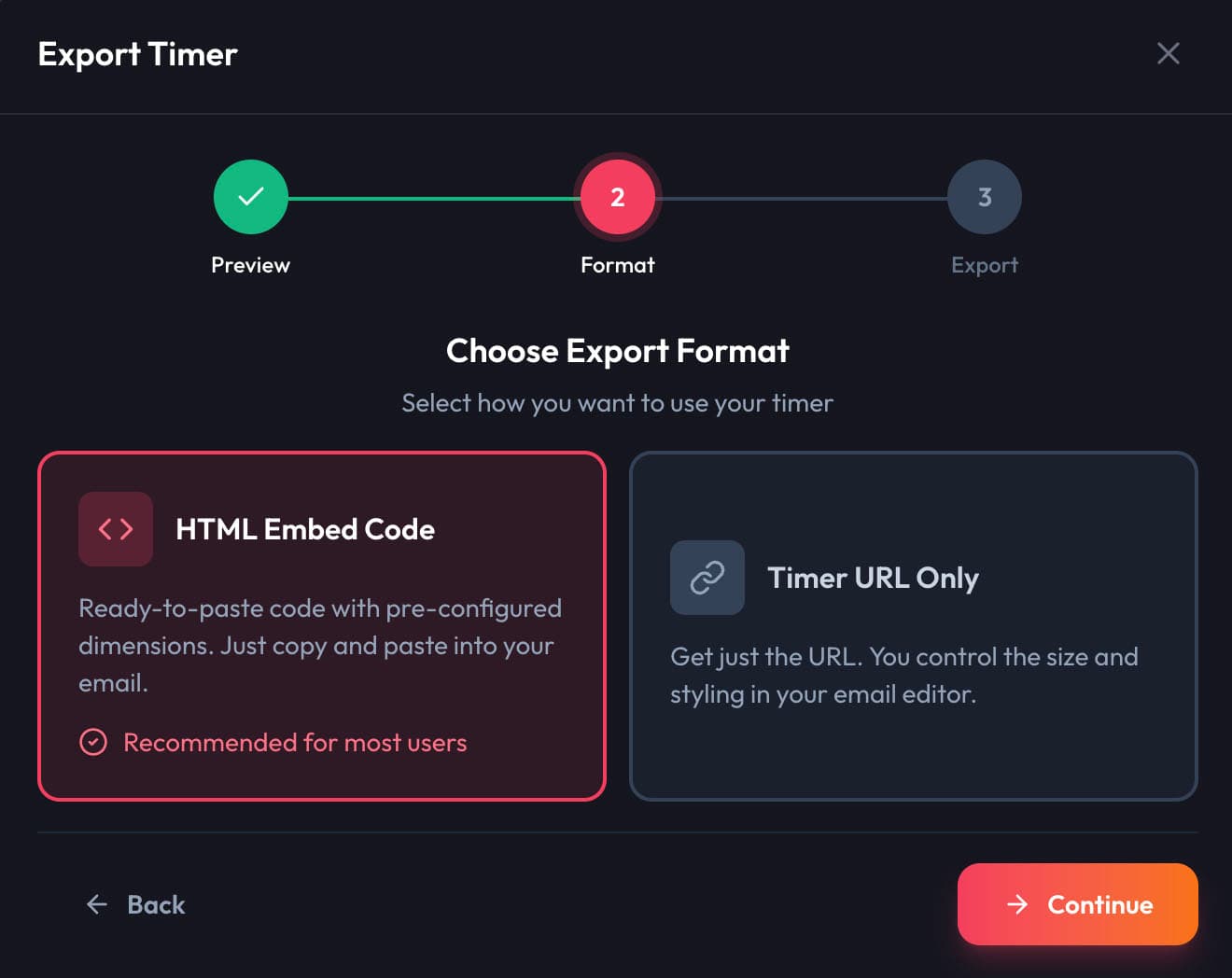
Select "HTML Embed Code" - this is the best option for Mailchimp
Click "Continue" to get your embed code.
On the final Export step, click the "Copy Code" button to copy your HTML embed code to the clipboard.
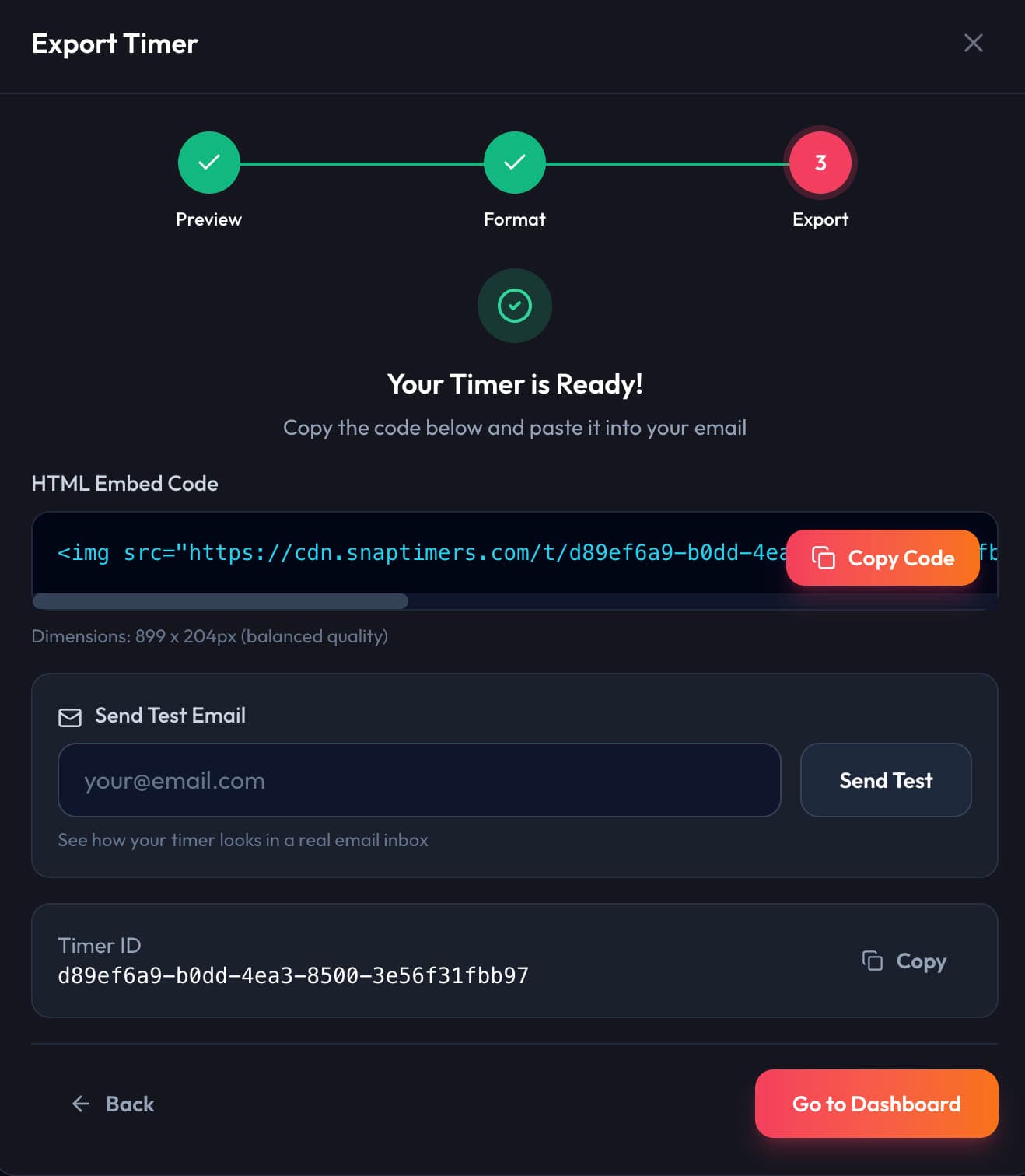
Click "Copy Code" to copy your timer HTML
Keep This Code Handy
You'll paste this HTML code into Mailchimp in the next step. The code includes an <img> tag with the correct dimensions and responsive styling.
Add a Code Block in Mailchimp
Now switch to Mailchimp. Open your email and add a Code block where you want the countdown timer to appear.
Open your Mailchimp email campaign or automation in the drag-and-drop editor.
In the left sidebar under Content Blocks, find the Code block.
Drag and drop the Code block into your email exactly where you want the countdown timer to appear.
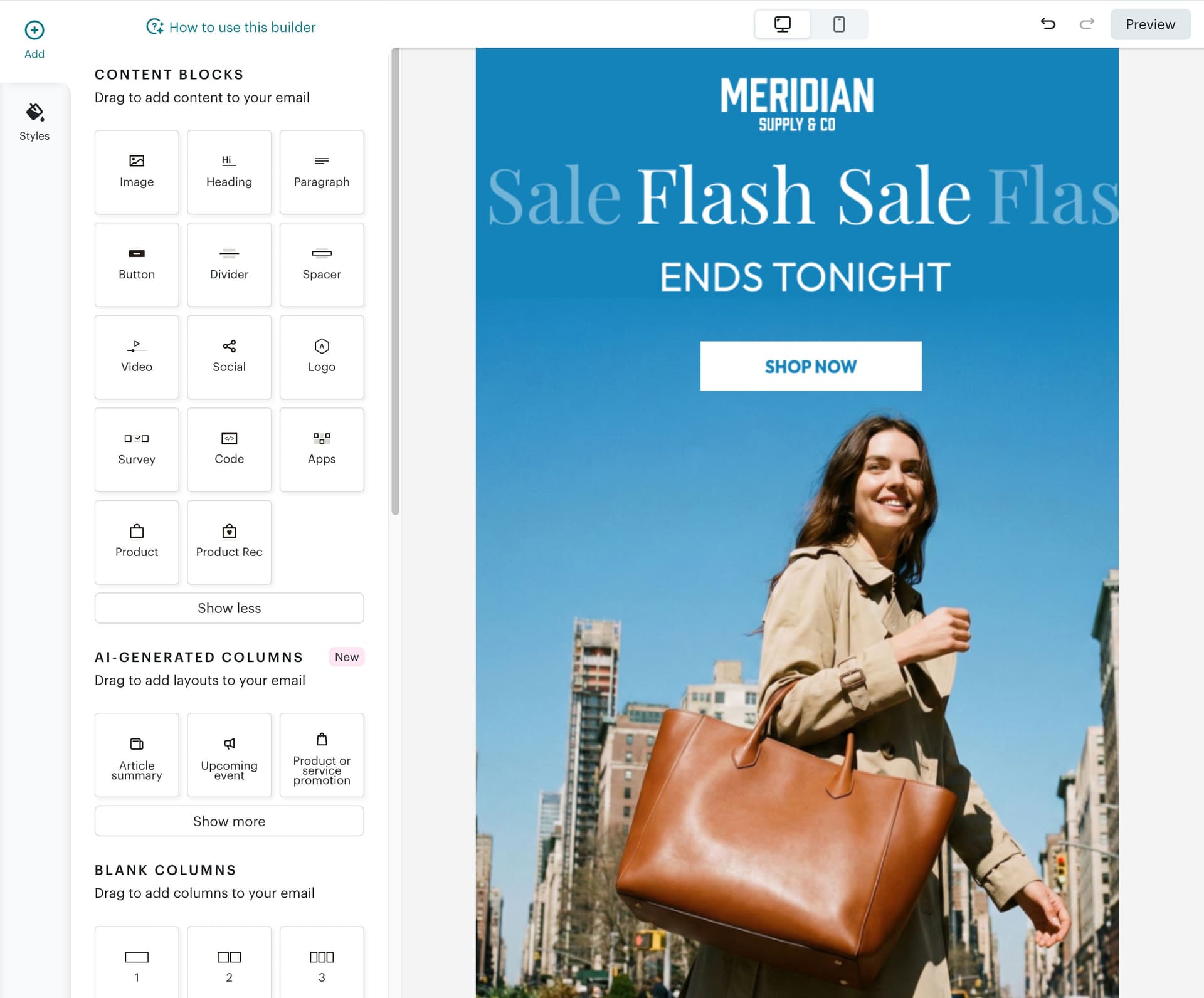
Find the Code block in Mailchimp's Content Blocks panel
Why Use a Code Block?
The Code block lets you insert custom HTML directly into your email. Unlike the standard Image block, it preserves the exact HTML we need for responsive countdown timers that update in real-time.
Paste Your Timer Code & Preview
Now paste the HTML code from SnapTimers into the Mailchimp Code block editor.
After dropping the Code block, the HTML editor will open on the left side. You'll see some default placeholder text.
Select all the default code and delete it, then paste the SnapTimers HTML code you copied earlier.
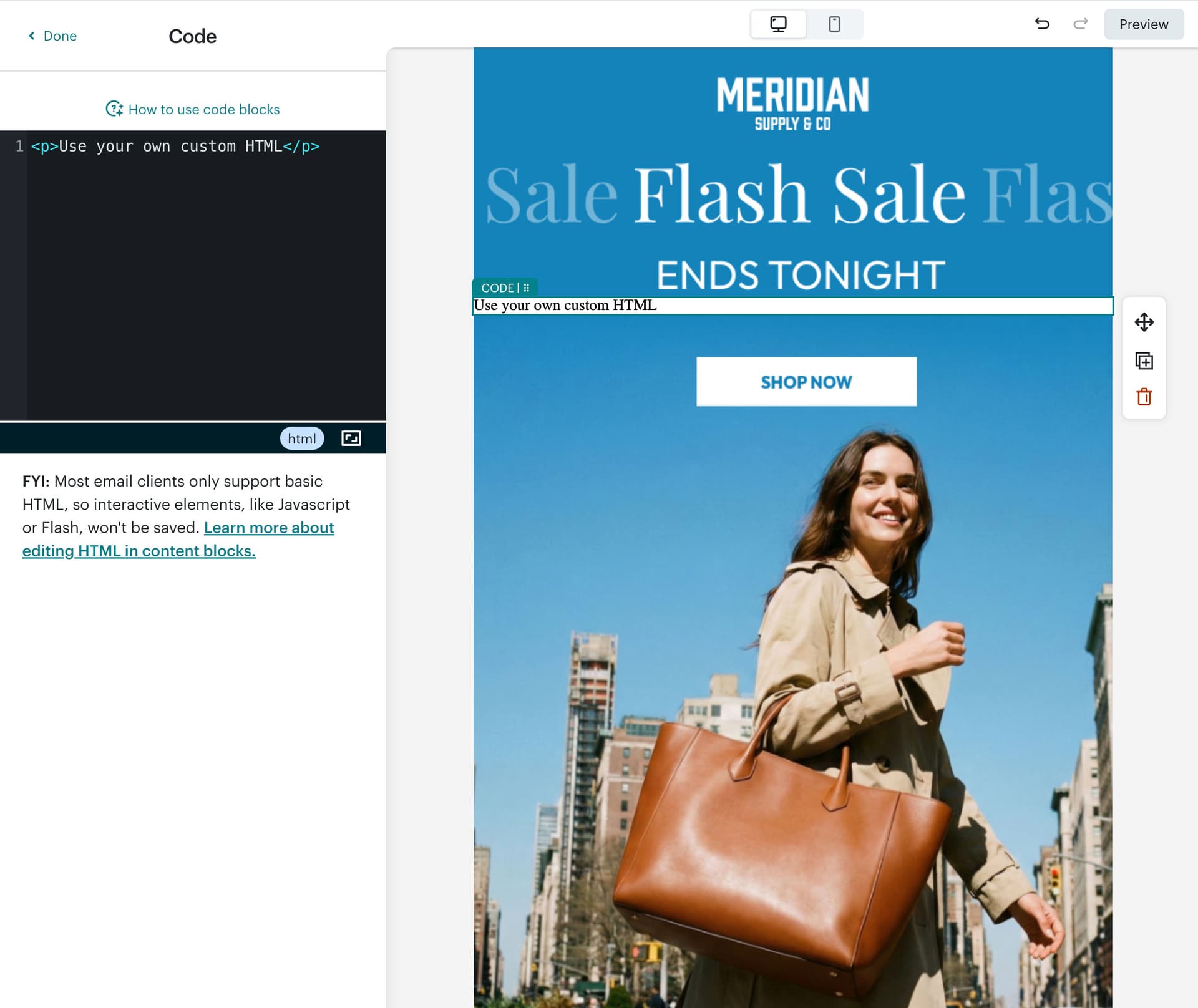
The Code block editor - ready for your timer HTML
Click "Done" in the top left corner to save your changes and return to the email preview.
Your timer should now be visible in the Mailchimp editor preview. You'll see a live countdown showing days, hours, minutes, and seconds.
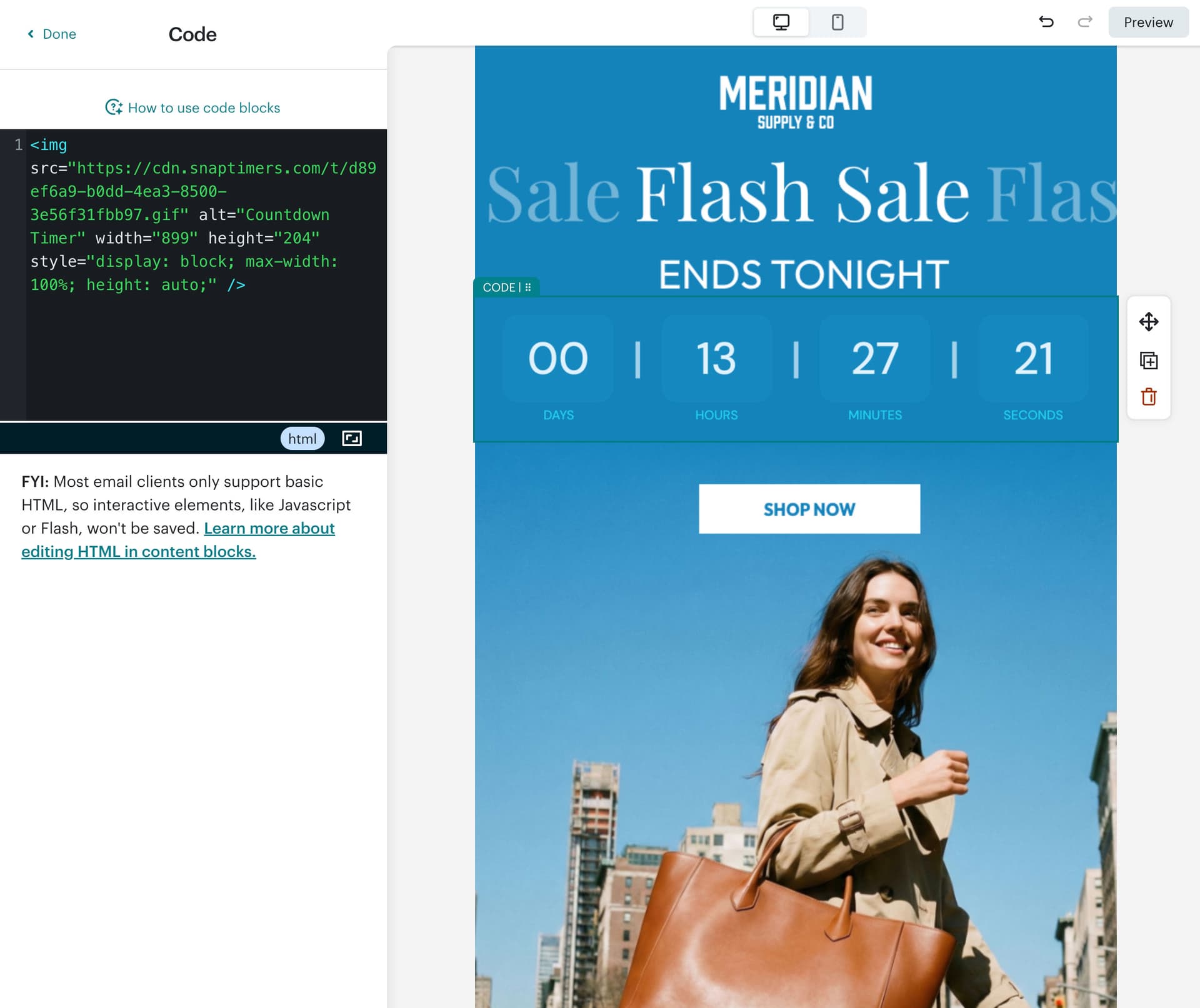
Your countdown timer is now live in your Mailchimp email!
Click "Preview" in the top right corner to see how it looks, then send a test email to yourself.
Check the timer on both desktop and mobile to ensure it displays correctly on all devices.
The Timer Updates in Real-Time
Every time someone opens your email, the timer is fetched fresh. If you reopen your test email a few minutes later, you'll see the countdown has updated - that's exactly how it works for your subscribers too!
Bonus: Using Evergreen Timers in Mailchimp Automations
Evergreen timers are perfect for Mailchimp automated journeys like welcome series, abandoned cart emails, or win-back campaigns. Instead of counting down to a fixed date, they start counting from when each individual subscriber first opens the email.
How to Set Up Evergreen Timers for Mailchimp Automations:
When creating your timer in SnapTimers, select "Evergreen" as the timer type.
Set your duration (e.g., 24 hours, 48 hours, or 72 hours).
When you click Export, select "Mailchimp" as your email provider, then choose "HTML Embed Code" format.
Copy the HTML code and paste it into your Mailchimp automation email using the Code block method above.
SnapTimers automatically adds the Mailchimp merge tag (*|UNIQID|*) to your code for subscriber tracking.
Each subscriber gets their own unique timer countdown that persists across devices and email opens.
Best Use Cases for Evergreen Timers in Mailchimp:
- Abandoned cart automations - "Complete your order in the next 24 hours for free shipping"
- Welcome series - "Your exclusive 20% off expires in 48 hours"
- Browse abandonment - "Your item is waiting - offer ends soon"
- Win-back campaigns - "Come back! Special offer expires in 72 hours"
Troubleshooting Common Mailchimp Timer Issues
Timer not showing in Mailchimp preview?
Make sure you're using the Code block (not the Image block). Also check that you pasted the complete HTML code including the <img> tag with all attributes.
Evergreen timer restarting on each email open?
This happens when the Mailchimp merge tag isn't being processed. Solution: Make sure your HTML code includes the *|UNIQID|* tag in the image URL. Also ensure you have a paid SnapTimers plan for smart evergreen functionality.
Timer looks blurry or pixelated?
Go back to SnapTimers and regenerate your timer with a higher quality setting (Balanced or Retina). Then copy the new code and update it in your Mailchimp Code block.
Timer shows all zeros?
This means your countdown has expired. Go to SnapTimers and either update your target date to a future time, or configure a custom expiration message/image in the timer settings.
Timer is too large or too small?
The HTML code includes max-width: 100% so it will automatically scale to fit the column. If you need a specific size, you can modify the width and height attributes in the HTML code, maintaining the aspect ratio.
Timer works in preview but not in test email?
Some email clients cache images. Try waiting a few minutes and reopening the email, or send another test email. The timer should update with the current countdown.
Summary: Adding Countdown Timers to Mailchimp
You've learned how to add live countdown timers to your Mailchimp emails. Here's the quick version:
Ready to Create Your Mailchimp Timer?
Start creating urgency in your Mailchimp emails today. It only takes a few minutes to set up your first countdown timer.
Create Your Free TimerNo credit card required